

This document provides an overview of the mms reporting portal.
The reporting feature are availbe in the mms user interface, if you need access, please contact your mms account manager or the mms tech support team.
Main report type selection
There are different types of reports available, depending on your needs.
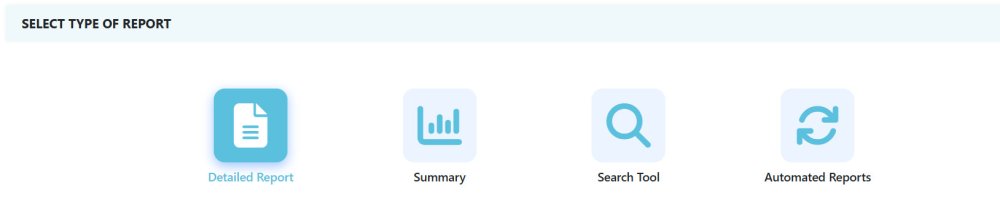
- Detailed Reports lets you create reports that include a detailed log of all messages
- Summary Reports lets you create reports that proide you with message volume for billing, analytics or controlling
- The Search Tool live-search, lets you identify individual messages or smaller subsets for troubleshooting or testing
- Automated Reports provides you with recurring reports that you need all the time
Detailed Reports

The Reports tab allows users to create and download detailed messaging reports.
➡️ Within the main paramter section, select your transportcode(s)/senderID, the message channel and the date/time range of your desired report.
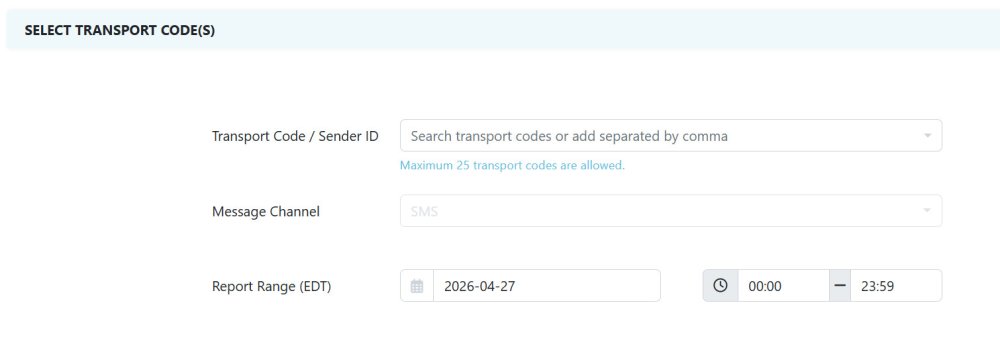
Transport Code: The number used as the Sender ID for messages (usually a short code, 10DLC number, or TFN).
Message Channel: The type of messaging channel: SMS, MMS, Facebook, Twitter, WhatsApp, etc..
Report Range: The date/time range to be queried for traffic.
Now you can either schedule your report immediately by hitting the SCHEDULE button or move on to the optional parameter section.
➡️ In case you need additional optional parameters for your report, expand the OPTIONAL FILTER section and select the required optional parameters.
Report Title: Name of report.
Service ID: The messaging service to be queried. Reports can be integrated with other MMS-Inc services such as SMS Chat and API. Service IDs from these services can be selected here as well. If in doubt leave the set to “ALL”.
Program: User-defined grouping of transport codes for consolidated searches.
Show Status: Downstream progress reports (i.e. network delivery receipts) are available from most carriers for SMS/MMS messaging. Select ‘Yes’ to view the available status reports. Note that when Show Status is set to ‘Yes’, the maximum Report Range is 24 hours.
Recurring: For selecting 1-time or recurring reports.
Report Period (optional): The time period for recurring reports (daily, weekly or monthly).
Report Date (optional): The date/time the report should run.
Message Direction: Outbound (MT), Inbound (MO) or ALL traffic.
Phone Number: To search for traffic sent/received to/from a specific phone number.
Message Text: To search for specific text in messages to/from a specific phone number (Phone Number must be provided).
Report Data Field Editor
The data field editor allows you to customize your report.
➡️ Open the editor by expanding the data field section and select custom columns for your report
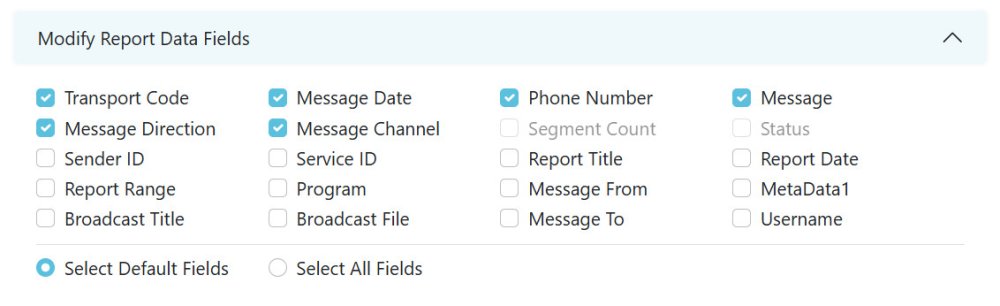
➡️ Once all your required parameters are selected, schedule your report by hitting the SCHEDULE button.
Report History
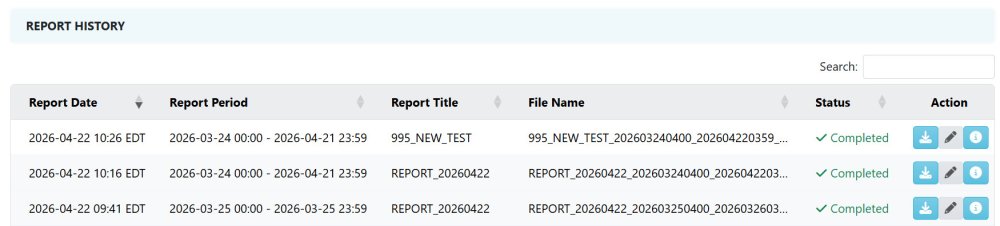
The Report History section provides completed reports, sorted by date/time. You can download your reports in the UI manually or you can get access to MMS’ ftp server for e.g. process automation.
While a report is not yet generated, you can cancel the report here via the action buttons on the right side, as well as reviewing summary metadata via the DETAILS button.
Summary Reports

For total traffic volumes (e.g. for analytics or billing), use the Summary Reports tab. Generate reports for specific services, time/date ranges, transport codes, and programs.
Total volumes can be displayed for the entire selected time period or for a daily/monthly split.
➡️ Within the main paramter section, select your transportcode(s)/senderID, the message channel and the date/time range of your desired report.
Now you can either schedule your report immediately by hitting the SCHEDULE button or move on to the optional parameter section.
➡️ In case you need additional optional parameters for your report, expand the OPTIONAL Filter section and select the required optional parameters.
Once all your required parameters are selected, schedule your report by hitting the SCHEDULE button.
The Search Tool

The Search Tool allows the user to search messaging traffic. Search is mainly used for specific investigations and troubleshooting. Search results are limited to 5000 entries. For larger, more comprehensive traffic logs, generate a report from the “DETAILED” section and download your results in a CSV or Excel file.
➡️ Within the main paramter section, select your transportcode(s)/senderID, the message channel and the date/time range of your desired report.
Now you can either schedule your report immediately by hitting the SCHEDULE button or move on to the optional parameter section.
➡️ In case you need additional optional parameters for your report, expand the OPTIONAL Filter section and select the required optional parameters.
Similar to the detailed reports, you can customize your search results via the Data Field editor.
Once all your required parameters are selected, schedule your report by hitting the SEARCH button that triggers a live message search.
Automated Reports

The automated report section provides recurring reports that have been setup on your account level.
Please contact your mms account manager or the mms support team to setup automated recurring reports.
Automated reports are generated every 24h for the previous 24h period (1 full day, 00:00:00 to 23:59:59)
Several types of automates reports are availabe, including:
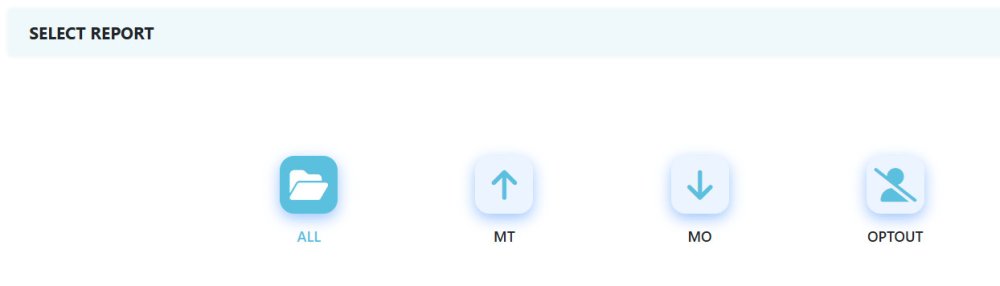
- ALL provides daily reports
- MT provides daily outbound reports (mobile terminates messages)
- MO provides daily inbound reports (mobile originated messages)
- OPTOUT provides daily optout reports (phone numbers that texted a optout keyword)
- CUSTOM provides daily custom reports (please contact your mms support team for custom setups)
➡️ Select the reports you want to download and hit the DOWNLOAD button.
Status Codes – Message Delivery (DLRs)
The table below shows message status codes returned by carriers and intercarrier providers when an SMS message is sent. Some carriers provide actual handset delivery receipts (DLRs), other carriers simply provide a confirmation that the message has been queued for delivery.
| Status Code | Description | Temporary or Permanent |
|---|---|---|
| Delivered to Carrier Network (00) | Message was accepted for delivery by the mobile carrier. No further information available. | Permanent |
| Delivered (00) | Delivered to subscriber | Permanent |
| In Transit (01) | In transit through carrier network | (Transient) |
| Carrier Failure (02) | Confirmed non-delivery by the carrier | Temporary/Permanent |
| Intercarrier Failure (04) | Confirmed non-delivery by intercarrier network | Temporary/Permanent |
| Rejected (05) | Message blocked by network: Generic | Permanent |
| Rejected (06) | Message blocked by network: Subscriber opt-out | Permanent |
| Rejected (07) | Message blocked by network: SPAM | Permanent |
| Invalid Destination (08) | Invalid recipient numbers | Permanent |
| Invalid Carrier (09) | Carrier does not exist | Permanent |
| Rejected Blacklist (10) | Message blocked by carrier: Blacklisted transport code | Temporary/Permanent |
| Destination Unavailable (11) | Mobile phone not reachable | Temporary/Permanent |
| Carrier Volumetric Block (12) | Transport code has exceeded the messaging volume or throughput allowed by the carrier | Temporary/Permanent |
| Blocked URL (13) | Message blocked due to unauthorized URL embedded in message | Permanent |
| Blocked TFN not Verified (14) | TFN is not registered with carrier network | Temporary/Permanent |
| Multimedia Failure (15) | Failure of multimedia message | Temporary/Permanent |
| Invalid Source (16) | Transport Code invalid or misconfigured | Temporary/Permanent |
| Rejected-Device (17) | Message blocked by end-user device (e.g. iPhone, Android) | Permanent |
| User blacklisted (99) | Message blocked by mms: Blacklisted end-user number | Temporary/Permanent |
Post your comment on this topic.